Pages

Wednesday, November 18, 2015

Google Forms for Reading Conferencing


Something that we have been using at Webb City is Google Forms to record reading conferences with a student done by the teacher.  Gone are the clipboards of what the students are reading, where they are in their AR points, and furthermore trying to keep track of where each student is according to their goals.

We have had a few teachers create Google Forms to collect their students' data daily, weekly, biweekly, however often they choose to meet with their students.  Some teachers ask comprehension questions, and/or purpose for reading questions.  Teachers are tracking the number of pages read and tracking AR (Accelerated Reader) points.

Collecting the data is the easy part.  Simply create a Google Form with the questions you want to collect data on including name of students.  While doing this you get a google sheet of all the data that you collected.  All in one location, but organized by date collected, not ideal.  Teachers using iPads can make a shortcut on their homepage that goes directly to their Google form, teachers using a computer can simply bookmark the google form and you are ready to collect data.

Organization of the data takes a little more knowledge of formulas inside of google sheets.  Most teachers would like to have a sheet of data for a given student.  This is ideal for reviewing the progress of a student with the student and with parents.

Inside your response sheet you can work with the filter formula to bring data into another sheet with certain criteria.  You simply need to create multiple sheets inside of your response Google Sheet.  Name each sheet your students' names to help organize, then copy the header of your response sheet into the top row of your new sheet.

Student Sheet Names
Header Row 

In cell A2 or the first cell under your header row, you will create a formula similar to this:

=FILTER('Form Responses 1'!A$2:G,'Form Responses 1'!B$2:B="Students'Name").

Replace "Student's Name" with the name of your student leaving it in "".  This will bring in the data of that student.  Simply repeat copying the formula and header into each sheet and you are done.  It will automatically fill per student once you submit a form response.

Example with student name Ethen

Example Spreadsheet of data:  Reading Conference- Short (Responses)

Once you set up your formulas you are done.  Now you can start analyzing your data and have your students reflect on their reading progress.  You can look into sharing the sheets with students and parents, but be careful about sharing other students' data.

Good Luck, may you unlock the power of Google Forms and Google Sheets in your reading conferences.  


Friday, January 9, 2015

District/Building Level Provide PD, How can we maximize it?

Professional Development days for teachers sometimes get a bad rap.  I remember in my 8 years of being in the classroom the moans of teachers as they travel to the meetings during early outs or come to a day without students.  "Why can't we just work in our classrooms?", or "I'm a PE teacher and this has nothing to do with me."  We have all heard the phrases or even said the phrase ourselves.  How can PD days become more engaging and pertinent to every staff member?  Well, at Webb City we have tried some different things and maybe these points can help.


  1. Conference Type PD Day (Teacher's Choice):  We have a district wide PD day in January we run like a conference.  Sessions are presented by staff members and attendees can choose from a wide variety of sessions.  We encourage our staff to choose sessions that will help them in their classroom.  We even have named it Professional Communicty Learning Together (PCLT).
  2. Small Groups:  Out High School have taken on PD days in the building as the opportunity to break up into small groups and rotate through different sessions that are planned.  This helps greatly with engagement and involvement in the different presentations.  We usually end up with groups of around 10-20.
  3. 1 on 1 Time:  Most of my big group presentations are just overviews of a tool.  When someone wants to use a new tool I usually meet with them 1 on 1 and we are able to figure out what the tool or strategy can do for them.  This does take a lot of time, but it is well worth the time and effort if you have staff to do this.
  4. BE POSITIVE:  If presenters and facilitators are excited to present and share then the day will always go better.  I really do enjoy helping teachers and this is one of the things that keeps me going, and if I bring this enthusiasm over my presentations it always pays off. 

Tools that might help to implement some of the strategies.

Sched.org  - Scheduling program that will help you manage a Conference.  $99 dollars per event, but well worth the price to be able to manage sessions and enrollment.  We have used it for 2 years and I think that it has freed up so much time.

Google Forms - Use this to create surveys that will help guide what sessions to offer and what topics you should be covered during professional development.  

Twitter - Back channel information and social side to professional development.  We have used a hashtag for our district and have hosed Twitter chats through the hashtag.  This creates a buzz for your event and also can create some great sharing between staff member of different buildings.

youcanbook.me - Booking program that links to Google Calendar.  This has made my job so much easier.  You simply set it up and post it on a site or give it to your staff and then you just manage your Google Calendar and it will notify you when you have meetings with teachers and will even email you depending on how you set it up.  


Wednesday, December 10, 2014

Using Video in the Classroom

"Now it's time to CREATE!"  

This phrase has become more prevalent in the classroom.  Students and teachers are both seeing the opportunities to create and videos have become the go to product.  So how do we have students create videos.  I have found that WeVideo and YouTube  offer pretty good video creation and upload services.

WeVideo:  

A free online video service that can be used on any device (some limitations on iOS and Android).  Being in a chromebook environment this program gives students the chance to create some more involved videos.  Free up to 7.5 min export per month, but can be increased if you purchase it.  I introduced this to my High School Staff and they like the features that it had and thought that students could jump in and create quickly.

YouTube

Most commonly known for a place to just host your videos, but it does have a pretty good editor built in.  Once you have your account verified (which we have had problems with), you can get a video uploaded and shared rather quickly.  If you are using iOS I would suggest the YouTube Capture app which makes uploading video fairly easy.

Uses:

Our teachers are being asked to submit video evidence of what is being done in the classroom, so a program that is able to be used on any device is key.  Also, students creating a video as a product of knowledge seems to me to be a great activity in the classroom.  I hope that our teachers and many other teachers will start to look at students creating video for projects.


Monday, November 10, 2014

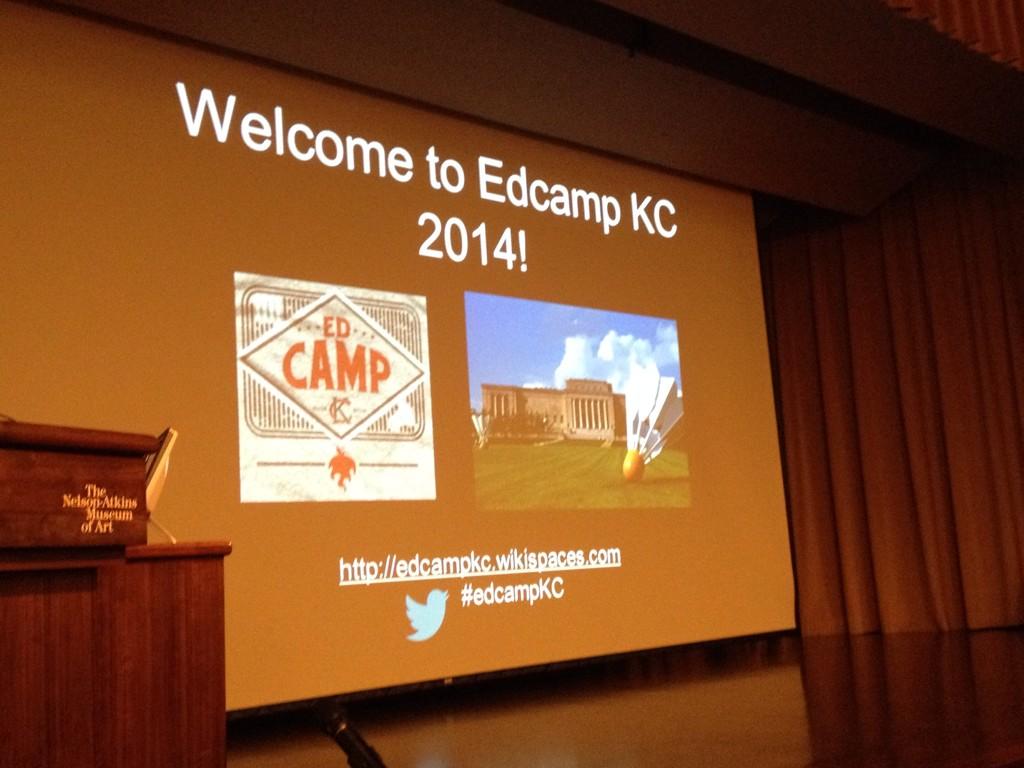
Mind Blowing Professional Development (reflection of my 1st Edcamp)


   First off, if you have not attended an Edcamp you need to.  Go to edcamp.wikispaces.com and find the Edcamp near you.  I went into the edcamp not know exactly what to expect and came out with so many new connections, ideas, and enthusiasm that I'm more excited for my job now.  Thanks to all the EdcampKC sponsors and planners, I will hopefully be back.

   When I showed up at EdcampKC I was nervous, but conversations started to happen.  I meet Patrick Donovan (awesome guy) who I have followed on twitter for a while and compared our stories.  We have been working in the field of Technology Integration for about the same time period and work with staffs of about the same size.  Was nice to bounce ideas off of each other and see what worked in each others situation.  I came out with some good ideas and motivation to get Google Certified.

   I then proceeded to look at the session board.  Time slots were starting to fill up and people were coming up with ideas for sessions.  I did put a session up, which was a flop, but that is ok, I now know that this day is more about conversations than presentations.  Kyle Pace did and introductory time with everyone and we were off to learning in sessions.

    Session 1 for me was about Twitter.  Came away with awesome ideas and some new stuff to try.  Never thought of having teachers practice tweeting using Todaysmeet.com.  What a great idea, keep it safe and help with formatting ideas in 140 characters.  I will have to try this one.  Also, got to share how our wonderful staff participates in a monthly chat on the first Tuesday of the month using #wcedchat.

   Session 2 was my session on Hapara Tools, but wasn't a good one.  Got to have some great conversations, then poked in on another session.  This is one of the great things about an edcamp, you are not tied to a session, if it is not going the way you want, go to another session.

   After the first two sessions we had time for lunch and to walk the Art Galleries since we were located at the Nelson Adkins Art Museum.  It was great.

   Session 3 was a session lead by a couple of students from nearby High Schools.  They talked about their educational experiences and what they think and ideal teacher would be.  Isn't this a great idea, let's ask our students what they expect from their teachers.  Discussion was great and one teacher said that a beginning of the year activity that she did was to have students create lists on poster board together that listed what they expected from the teacher, peers and themselves.  These lists were then used to direct the class throughout the year.  Talk about student choice.

   Session 4 was a session over how to change Professional Development.  I gained some new ideas of how to use twitter to send stuff to staff and also some ideas to hopefully change some of my Professional Development time with staff.

   All in all it was a great day, oh and I didn't mention that I won a Hat at the end of the day from the giveaways from the sponsors.


Tuesday, November 4, 2014

Pre-Edcamp Nervousness: The Unconference Preperation


In the past few weeks I have attended some conferences and the talk was about Edcamps.  So, I looked around and found one near and got on the waitlist and now I will be attending my first Edcamp this weekend in Kansas City.  Being that I have never experienced an Edcamp I did a little research.  The following things I found:
First, What is an Edcamp?
  • Free: Edcamps should be free to all attendees. This helps ensure that all different types of teachers and educational stakeholders can attend.
  • Non-commercial and with a vendor-free presence: Edcamps should be about learning, not selling. Educators should feel free to express their ideas without being swayed or influenced by sales pitches for educational books or technology.
  • Hosted by any organization or individual: Anyone should be able to host an Edcamp. School districts, educational stakeholders and teams of teachers can host Edcamps.
  • Made up of sessions that are determined on the day of the event:Edcamps should not have pre-scheduled presentations. During the morning of the event, the schedule should be created in conjunction with everyone there. Sessions will be spontaneous, interactive and responsive to participants' needs.
  • Events where anyone who attends can be a presenter: Anyone who attends an edcamp should be eligible to present. All teachers and educational stakeholders are professionals worthy of sharing their expertise in a collaborative setting.
  • Reliant on the "law of two feet" which encourages participants to find a session that meets their needs: As anyone can host a session, it is critical that participants are encouraged to actively self-select the best content and sessions. Edcampers should leave sessions that do not meet their needs. This provides a uniquely effective way of "weeding out" sessions that are not based on appropriate research or not delivered in an engaging format.

Second,What do attendees say about an Edcamp?


For more information you can check out http://edcamp.org/.  I have found more information that I probably need, but feel at least I will know what is going on when I show up.

Now I prepare myself to go and learn with a community.  I'm truly excited and will be posting more about what I have learned after my experience.  I realize that I might even present during the day, but I am excited to see what comes from my experience.  If you would like to follow along the learning check out #edcampkc on twitter.


Wednesday, October 1, 2014

" I really am using technology." Focusing on student learning.

Just recently I had an assignment given to me in my masters courses to create a walk through evaluation of technology integration in the classroom.  I do so by creating a rubric and google form that I filled while walking through the classrooms.

Google Form of Classroom Observation

Evaluation Rubric

These two items I was able to create with the help of some other online resources and a focus on ISTE Student Standards.  This process got me to thinking very much about how much time I spend visiting classrooms and seeing what innovative things that teachers are doing.  Also, I see areas that if I would spend a little time with the teacher they could do some even greater things.

Technology Integration Coaches (Specialists), this question would be for you, what is the best balance of time observing, modeling, coaching and researching?  I find myself looking at my schedule and seeing that I need to see more of what the teachers are doing now before I can find new things to be training teachers on.  I thinking using some kind of observation form can be useful as long as teachers don't see it as part of their formal evaluation system. 

This is where my title comes in, "I really am using technology". Teachers see the Tech Coach come in the room and they think that I am there to check on if they are using technology. I would say this is hard to overcome. We the push of instructional coaches focusing on student learning. I would have to say hopefully we can do away with this misconception. 

I just recently sat in on a meeting and the statement was put on the table of, "We are about student learning."  This puts it all in perspective. If we can enhance the learner goal with technology let's find a way and become proficient at it. If the technology is being used just because or I just really like the tool lets rethink or purpose. 

This year I think my focus even when I go to conferences is more clear. The students learning will shape how I plan and how far we can go with implementation with technology. 


Tuesday, September 2, 2014

Student Login Strategies, Tips, and Tricks

When deciding what to use as student logins school districts, teachers, and admin face a dilemma of what to use.  Do you create new accounts for each program or tool that are simple so that younger students will not have a hard time logging in, then you have to worry about what to do with these accounts as students get older and they need to use a more complex login.  Do you use the same type of accounts that students will be using later on in their school career, which are more complex and harder for students to learn.

Teachers don't get much say when your district controls the logins of certain district used programs, but teachers do use other programs and have to decide if they want to use the district standard so that students don't have to remember so many usernames and passwords.  This is a tough decision, but some solutions and tricks can be done to help.  These are not all my ideas, but are strategies that I have seen around my district.

Option 1:  You choose to have one complex login for most programs.

Tips to help students and teachers in the classroom:

  1. Allow Time the first time you log in.  I like to talk through the logins and patterns that are used in their accounts.  Is there a pattern you can point out how many numbers or letters in the log ins.  Does everyone have the same ending @____.org(.com).  Do passwords have the same number of characters.
  2. Have a Plan.  Can you have races to see who can login the fastest.  Can you set a goal time to have the whole class logged in by, or can you set in place helpers that can help slower students.
  3. Remember Students can and will be able to log in quickly.  If you use this same generic login for some game related or program, students really enjoy using, they will learn it.  Especially if they have free time at the end of the day and you tell students they can login and use this program but you cannot help them.  They will learn it.  
Option 2:  You have multiple logins for students.

Tips to help organize the processes:
  1. Have something to organize student logins.  One example is to get paint sample strips from the hardware store and write different logins for each program on a different paint color.
  2. Be clear which login that you will be using for a given activity.
  3. Create log ins for each program that are similar for all students so you can reference patterns and other qualities of the login during the login process. 

  Tech Tip / Tech Tool

Classrooms with 1 iPad could be using the iPad to collect example pictures or videos of students doing procedures correctly.  This creates a collection of examples for teachers to use to redirect students when they are not doing something correctly.  Also one other tip would be collecting reading samples of students using the iPad.  Video students reading a passage upload it to Google Drive, or a Google Site so students can compare their growth throughout the year.